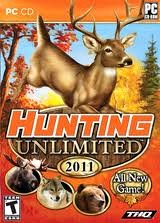
Hunting Unlimited 2011
When you install this game from a game disk, the game will silently check your computer's
hardware to see if it is up to par. This is called "Verifying installer." If
it is not the game will not be installed.
What are the advantages of this game?
 HU2011 has 4 environments for you to hunt through- pine forest,
rolling countryside, woodland forest in summer, and winter mountains.
HU2011 has 4 environments for you to hunt through- pine forest,
rolling countryside, woodland forest in summer, and winter mountains.
 In this game you can hunt wolves, whitetail deer, American elk, moose, bighorn sheep,
brown bears, and cougars. Some animals are dangerous and can kill you.
In this game you can hunt wolves, whitetail deer, American elk, moose, bighorn sheep,
brown bears, and cougars. Some animals are dangerous and can kill you.
 I like the fact that you can toggle your scope- meaning you can shoot from your hip
even if your weapon has a scope on it.
I like the fact that you can toggle your scope- meaning you can shoot from your hip
even if your weapon has a scope on it.
 This game has an automatic reload of each weapon or you can manually choose to reload at will.
What are the disadvantages of this game?
Hunting Unlimited 2011 is a totally different game than the Hunting Unlimited games before
it. Gone is the use of your user name and gone are the user missions. What kind of a game
is this? My first impression is that it is much like a modified arcade style type of
game. If you hate arcade style type of games, this is not the game for you. There are timed
missions and in your game play you have to perform at a certain level in order to proceed
to the next mission. If you don't perform adequately, you don't proceed.
Anytime you want to run this game simply install the game disk and the game should
self start. The game should automatically save your forward progress but it doesn't so
each time you play it you have to start all over again from the start. The boredom of doing
this is unimaginable and your only hope of enjoying this game is to download a game cheat for
it so you can progress to the full game.
This game folds your weapon into your arms when you are moving which is really
a drawback for running and shooting at the same time. However, if you toggle your
sites (put the sites up to your eyeball) you can run and shoot at the same time without
the game folding your weapon. But, it's kind of hard to see where you are running to if your
weapon has a scope on it...

Miscellaneous Information About This Game:
Installing the game:
Insert the game disk and it should automatically start. The install shield wizard will
install the game after it checks your computer and finds it to meet the appropriate hardware
requirements. The game will install in it's default location in Windows XP at
C:\Program Files\HU2011. This game will run on Windows 7. After the game is installed,
remove the game disk, and re-start (reboot) your computer. Remember the old rule: anytime
you mess with your computer's program files in any way, always reboot.
If you need help with this game you can go to the location on your computer where this
game is installed and read the "manual" that is written in Word Pad format.
Some Tips On How To Play This Game:
Once the game starts you will see a map of the U.S.A. with red and green dots. You can
play the game associated with each green dot. You have a choice between a rifle with
a scope or a shotgun. If you use the rifle you can place the gun's scope to your eye
(toggle the scope) by pressing a keyboard key- I use the letter T for this. I also use
R for reload, z for zoom in on the scope, etc. You can set your keyboard choices the same
in all of the Hunting Unlimited games that you play if you so choose.
One green dot game is defensive in nature- referred to as Stands. The game starts with
you in a hunting stand where you are attacked and have to defend yourself. If you don't
defend yourself adequately enough in the limited amount of time the hostile animal(s) will
knock down your stand and
kill you and you cannot progress forward in the game. I recommend you use the shotgun
on this game.
Another green dot game is offensive in nature- referred to as Stalking. The game starts
with you in the woods. You have to shoot some fast moving deer, one at a time. Use your
compass, always keeping the green arrow at the top and moving towards your target.
While stalking you may be attacked by wild and dangerous animals that bite you.
If you don't shoot the deer you cannot progress forward in the game. I recommend you use
the rifle on this game.
You can hunt in 50 states of the United States in three challenge modes:
If you make it to Gauntlet mode you can find and kill the largest trophy animal in each
of the 50 states of the United States.
If you make it to Straight Rail mode you can Kill at least two trophy animals from the
same position.
If you are a sharp-shooter you can bag 7 trophy animals in a row with one shot kills
in Eight Ball mode. "Eight Ball mode" requires players to bag seven
animals in a row with one-shot kills.
If you want to you can upload your score online to see how you compare to your competition.
Generally speaking, if your computer will play HU2010 it should also play HU2011 as well.
This game was created for Windows XP, Windows Vista, and for Windows 7
OS (operating systems).
Make sure that your computer meets the minimum system requirements for HU 2011 before
installing this game.
Here are the (Computer's) Minimum System Requirements For This Game:
Your computer's Operating System (OS): Windows XP, Vista, or Windows 7
Your computer's motherboard chip (CPU): 1.0 GHz
Your computer's RAM memory: 256 MB
Your computer's hard drive (HDD): 1 GB free hard drive disk space
Your computer's Graphics Card: 128 MB
Graphics Card Sound Card: DirectX 9 Compatible
Your computer's DirectX: Version 9.0c
Note: on the game box the system
requirements indicate that you need a Pentium VI chip. VI in Roman numerals means 6
and there is no Pentium VI chip. This is a typing error and it should read Pentium IV
for Pentium 4.

A Few Game Hints For The HU Challenges
Note: if you wound an animal and it is down but suffering, you can't tag it until you
kill it first.
Note: always keep your weapon loaded at all times, no exceptions if you want to live.
Note: if you go to tag an animal and can't find it, look in a bush, or sometimes under
the water.
Note: when a challenge starts, the way you are facing is mostly always the direction for
you to move.
Note: You have to get off of the ATV or horse to use your binoculars, shoot, or tag your
animal(s).
Note: Tier 10 introduces you to a new weapon- the Swiss 6.5 x 55mm SE rifle that shoots a
140 grain bullet. This weapon will not be unlocked by the game to you- even in the user
missions- until you reach Tier 10 in the challenges.
Note: Tier 7 in HU2009 and Hu2010 introduces you to wolves. How do you shoot them?
At close range, I like to use a 12 gauge pump shotgun on cougars, lions, pigs, moose, and wolves because of the
beneficial shot spread pattern against fast moving and dangerous animals. But feel free
to use any weapon that suits your fancy.
The first 6 tiers in the HU Challenges are nearly identical in HU3, HU4, HU2008, HU2009, &
Hu2010. So, let's look at a few challenges going tier by tier.
TIER 1:
The basic function of Tier 1 is to teach you how to move and to introduce you to the
game. These challenges are simple, not dangerous, and don't need much explaining.
There is a challenge hunt called "tracking." There are some fast and dangerous
animals in this challenge. When choosing your rife, click on the default rifle to bring up
other choices and choose the Win Mag semi automatic rifle. This will allow you rapid fire
with a fast reload. As soon as the game starts hit
the Esc key and go to options. Change the bullet cam to "never." Then click on
apply and then return to the game. Shoot the mountain lion first and the grizzly bear
second. Then hunt down and kill the moose. If you don't get them, they might get
you. Have fun.
There is a challenge hunt called "trophies." When the game starts get on
the ATV and go straight ahead- but don't drive off of the edge of the cliff. Stop on the
rim. Look across the river at the mountain range there. You will see a kind of a bowl
shaped valley up in the mountains. In the middle of that bowl are 3 targets. Zoom in with
your scope. I always aim a tad above the biggest animal to allow for bullet droppage.
Start shooting. Then get on your ATV and go north to the canyon incline and drive down by
the river. Turn left or go north again until you get to the narrowest part of the river
and cross over there. Then go along the river heading SW until you find the canyon incline
that allows you to drive up into the bowl where you first spotted (and hopefully shot)
the antelope- claim your prize or keep going to find it. Keep hunting. Good luck.
There is a challenge hunt called "wild warthawgs." It's wise for a
beginner to save your life by getting up into the box stand on this hunt.
There is a challenge hunt called "panic." When the challenge starts I like
to spin around and get into the water as fast as possible. Then I like to attack slightly
(only go a few feet) and then retreat slightly back to the water, letting loose with all of
the arrows I can shoot until I kill the grizzly or it kills me first. Note: when possible,
I like to get the bear circling me while I walk backwards, spinning and firing at the same
time. As it keeps circling me, I fill it full of arrows at close range.
There is a challenge hunt called "mish mash." None of the animals in this
challenge can kill you so use them for target practice. You might fill 3 tags, then restart
the hunt and fill another 3 tags with different animals, as you prefer.
TIER 2:
There is a challenge hunt called "on the trail to dinner." When the
challenge starts Walk about
20 paces straight ahead so you can see the lake. There are 2 white tailed deer straight ahead.
Start shooting.
There is a challenge hunt called "got elk?" You can see the elk in the
valley- easy shooting. Beware of the hostile moose- it is dangerous so take him out.
There is a challenge hunt called "cougar country." Choose the ATV.
When the challenge starts, get on the ATV and drive East to the box stand on top of the
little hill. Using a 12 gauge pump, shoot and tag the 3 cougars.
There is a challenge hunt called "across the river." The black powder rifle
is a close range weapon with a slow velocity bullet, so you need to get close to your target
when using it. When the challenge starts walk straight ahead until your feet are in the water.
Using open sites, aim at the bull elk's feet for the kill shot. Turn south and go over the
bridge to tag your prize.
TIER 3:
There is a challenge hunt called "getting close to moose." When the
challenge starts take 2 steps forward and wait for the 2 moose to come to you. Those
moose will not kill you. Shoot and tag each one.
There is a challenge hunt called "snow joke." When the
challenge starts head down the hill a few steps as you don't have a tag to kill the cat.
Then head back up the hill staying on the ridge line. You will meet the grizzly. Make sure
bullet cam is on "never" for fast shooting. In this challenge I like to run with the gun
sites placed up to (toggled) to my eye for fast action. Kill and tag the bear.
There is a challenge hunt called "don't get buffaloed." When the
challenge starts run East up the mountain incline. Wait for some buffalo to separate
from the crowd to come and get you. Take 3 of them out and tag them when you can.
There are other ways to play this challenge, but just remember, you only have 3 tags.
TIER 4:
There is a challenge hunt called "Bulls Looking For Trouble." When the
challenge starts only shoot and tag one as they are harmless.
There are 2 challenge hunts called "In the Midst of the Mist" and
"Mission Impossible". These challenges will scare you and get you
killed. No hints for these missions. Prepare to die.
There is a challenge hunt called "Lion's Breakfast." When the
challenge starts shoot the lion when it attacks you. Tag it before any harm befalls you.
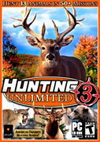
 Introduction
 Sometimes, you can't just take one of these games home with you, pop it into your computer and expect it to work right. You wouldn't try to drive a car with a flat tire, would you? Of course not! You want to drive your car when it is at peak efficiency. It's the same with your computer. Your computer is only a tool and you want to keep this tool as sharp as you can so it will serve you well. Sometimes your computer might need a little help from you to bring it up to full speed before you attempt to play any of the HU games. Yes, I know you want to play your game as quick as you can and you are impatient, but you probably have tried this anyway and something went wrong. That's a good reason for visiting this web page- you are looking for solutions- and I have a lot of solutions for many problems listed here. I will try to walk you through many steps to help you help your computer so you can play your HU game.
 I never had to use any of the game cheats on any of these games. I liked and wanted to play the challenge tier games. By doing this you will gain experience with different weapons and get to travel over different terrain in different kinds of weather. Working your way through these levels will give you some likes and dislikes on where you might want to hunt in some of the user missions that you can create.
 These are high quality games that demand the very best from your computer. And sometimes there can be problems playing these games if your computer is not up to the task. Nothing can be more aggravating or disappointing than installing a game that won't play. You feel cheated, angry, and want your money back but no store will do that (once the game disk has been opened), so you feel stuck with a game disk that is a piece of junk. That is why many gamers purchase the playstation, Wii, or other game players. They don't have to put up with computer problems and can just play and enjoy their games. Therefore, I don't recommend that you play any of the Hunting Unlimited games on your computer if your computer isn't up to the task. My advice is to do a little bit of searching and researching of facts about your computer before you make your game purchase so you don't have to put up with any untold aggravation in this respect. But if you have already bought your HU game disk (or received one as a gift) and it won't play right- you might want to take a stab at trying to get it to work. If so, I suggest you make some computer adjustments. These next sections (listed below) may help you out a lot. If not, please visit the troubleshooting section towards the bottom of this web page where I give a few pointers (on what you can do) or (what links you can follow to get help) to make your computer play these games so you can enjoy them. I think it's worth a try, don't you?



 Now go to the top of this display and click on the "Display" tab. Your computer's display adapter is just another name for it's video card. This card is not like a football card made of cardboard- rather it's a small computer chip board that you can easily place inside of your computer (if you need a new one). There are exceptions with video cards built in to the motherboard but I won't go into these.
 Your computer has an adjustment that allows you to be an administrator. Please make the computer adjustment so you are an administrator. This game program has to be installed and run under an administrator account in Windows XP Home. Why? Because the game program needs to perform the various "write operations" that includes tying in the game system to the computer's system and this can only be done successfully under an Administrator account.
 Your computer probably has a backup system that can be activated in case you make a mistake while making computer adjustments. This helps you get back to where you originally were. If that is the case then create a "restore point" now before going any further.

 DirectX 9.0c is sufficient for all 6 HU games. This is your Direct X goal mark for these 6 games. If you need "up to this" amount and you know how to upgrade your computer's "Direct X Program" then go ahead and do it now. If not, please see the troubleshooting section below.
 Place the game disk into the cd tray, close the tray, and install the game.
 If you are running Windows XP Home it's time to run a program on your computer called "Disk Cleanup." What's that? This calculates the amount of space you will be able to free up on your hard drive. It's a computer tune up program.
 There's another computer tune up program that you need to run. This is called "defragmentation." What's that? Simply speaking, this program helps put back together many files that are fragmented- one half of the file may be here and the other half over there. Too many of these kinds of fragmented game files might affect the game's performance.

 Some folks have an anti-virus program on their computer but hardly ever run it. I can assure you that if you have a malicious worm or virus system on your computer and it activates to destroy or cripple some of your computer's system files then any HU game you play on your computer is not going to work right.




 When the game starts you will see 6 icons at the top. Click on the next to the last one- the one that has the moose head on it. You are going moose hunting this time. Click on Kill or Be Killed. Then choose Double the Action. There are 2 hostile moose coming after you. You have a .303 British bold action single shot rifle. There is no safe place. Your only protection is in your own ability to get them before they get you. Good shooting!
 When I was running my old Gateway computer that had a pentium 2 processor- even though I had Windows XP Home installed on it- this game ran better when the compatibility factor was set on Windows 98. That's because this computer originally had Windows 98 installed on it before I upgraded it. You can always change these compatibility settings whenever you want to. If one doesn't work good for you then try changing it until it does- it's kind of a trial and error situation.


 Bullet cam is short for "bullet camera" that follows your bullet or arrow to it's destination. The default setting on this is set at "promising shots." I didn't like the bullet cam at first and if you feel the same way you can turn it off. How do you do this? Once the game is up and running go to options, graphics, and you should see bullet cam listed. You have 3 choices: all shots, promising shots, and never. Choose the "never" option. Also you can change it in the middle of your game any time you want to. Later, I started liking it and use it all of the time now except when I'm being "rat packed" my multiple hostile animals that require quick kills.
 When you install this game from a game disk, the game will check your computer's hardware to see if it is up to par. This is called "Verifying installer." If it is not the game will not be installed.
 This game has a horse and an ATV for a hunter to ride that can be a lot of fun in this game.
 This game has user missions, and you can change your weapons.
 This game has bullet cam- in case you want to use it.
 What are the disadvantages of this game?

 When you install this game from a game disk, the game will check your computer's hardware to see if it is up to par. This is called "Verifying installer." If it is not the game will not be installed.

 When you install this game from a game disk, the game will check your computer's hardware to see if it is up to par. This is called "Verifying installer." If it is not the game will not be installed.

 When you install this game from a game disk, the game will check your computer's
hardware to see if it is up to par. This is called "Verifying installer." If
it is not the game will not be installed.
When you install this game from a game disk, the game will check your computer's
hardware to see if it is up to par. This is called "Verifying installer." If
it is not the game will not be installed.